

ax5author · 17
Layout
The Layout panel shows a live page while you change the look. The default layout stays fixed, and your own layouts are saved by name.
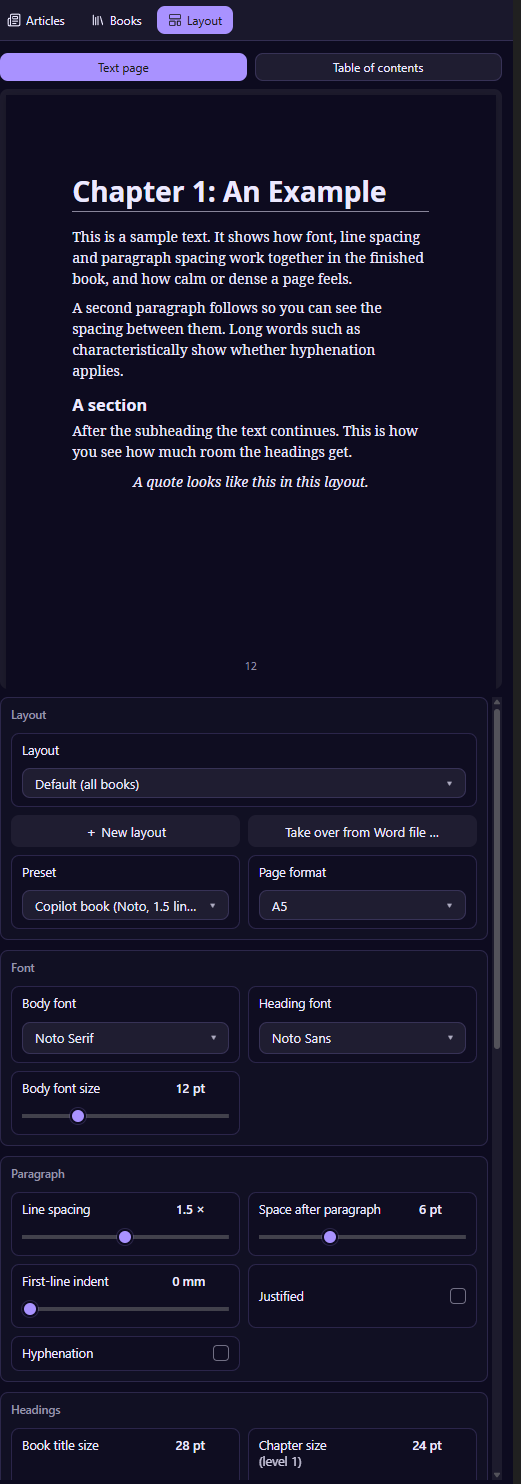
The preview
The page at the top shows a chapter heading, text, a section and a quote in your layout. A second view shows the table of contents.
Fonts and sizes
Choose body and heading fonts, the body size, the sizes of the book title, chapters and levels 2 and 3. Everything is set in points, from 6 to 48.
Paragraphs
Line spacing, space after a paragraph, indent of the first line, justified text and hyphenation.
Headings
A chapter can start on a new page, can have a rule under the title and can have its own color. Headings and the imprint have their own line spacing, so a title that runs over two lines stays calm.
Table of contents
Choose automatic, only at the chapter called Contents, or none. Set the levels, the font size, bold chapters and whether page numbers show (Word and PDF).
Page numbers and margins
Show page numbers at center, left, right, or outside and inside for print books. The title page and the back cover stay free of numbers, and numbering starts after the contents. Choose the page margin in millimeters, or leave it at automatic.
Your own layouts
Choose New layout, give it a name and change what you like. The panel asks you to save, so every change stays safe. The chosen layout belongs to the book, and the panel switches to the layout of the book you are working on.
Take over from a Word file
Do you have a Word document whose look you love? Choose Take over from Word file, pick a .docx or .dotx from your vault or your computer, and the plugin reads fonts, sizes, spacing, page format and margins. You get a layout of your own that you can change further. Do it as often as you like to keep several layouts.